
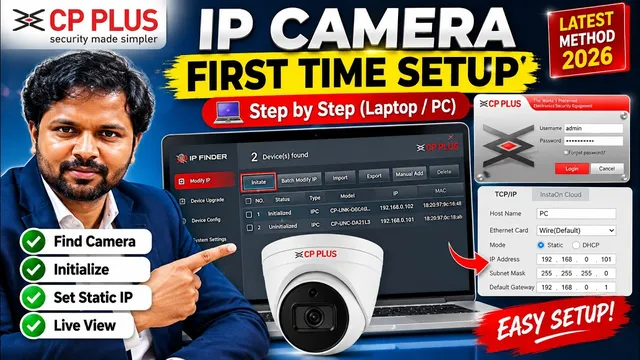
🔥 CP PLUS IP Camera First Time Setup | Initialize & Set Static IP Using IP Finder
Описание SEC.RU
По нашему материалу и сохранённой расшифровке.
Пошаговое руководство по первичной настройке IP-камеры CP PLUS с помощью программы IP Finder: установка, поиск камеры, инициализация, установка пароля, вход в веб-интерфейс и настройка статического IP.
Look here, our IP camera has been initialized and camera has been initialized and I have noted down its IPP address, which I have noted down its IPP address, which is 192 168.0.101, is 192 168.0.101, this is the IPP address of this camera, which will this is the IPP address of this camera, which will remain in DACP now.
To configure the IP camera of CP Plus, first we have to install IP Finder.
Читать материал по расшифровке
Описание автора
🔥 CP PLUS IP Camera First Time Setup | Initialize & Set Static IP Using IP Finder
download link : https://cpplusworld.com/software
In this video, I will show you how to set up a CP PLUS IP Camera for the first time using a laptop or desktop computer. If you have purchased a new CP PLUS IP camera and don't know how to initialize it, find its IP address, or configure a static IP address, this complete step-by-step tutorial will help you.
We will use the CP PLUS IP Finder software to detect the camera on the local network, initialize the camera, modify its IP address, and access the camera through a web browser.
This method is useful for CCTV technicians, installers, beginners, and anyone setting up a CP PLUS IP camera for the first time.
🖥️ Software Used
In this tutorial, I am using the CP PLUS IP Finder software to discover and configure the IP camera.
The software can help you locate CP PLUS IP cameras connected to the same local network and modify their network configuration.
🌐 Static IP Configuration
For CCTV installations, using a suitable static IP address can make it easier to access the camera consistently on your local network.
For example, depending on your router/network configuration, you may use settings such as:
IP Address: 192.168.0.xxx
Subnet Mask: 255.255.255.0
Default Gateway: 192.168.0.1
⚠️ Important: Do not blindly use these exact IP values. Your IP address, subnet mask, and gateway must match your actual network configuration. Make sure the selected IP address is not already being used by another device.
🔧 Basic CP PLUS IP Camera Setup Process
The general process covered in this video is:
Connect Camera → Find Camera with IP Finder → Initialize → Set Password → Configure Network → Set Static IP → Open Camera Web Interface → Login → Check Live View
This is especially useful when installing a new CP PLUS IP CCTV camera and configuring it from a laptop or desktop before connecting it to an NVR or larger CCTV system.
🔥 Why Use IP Finder?
If the camera's IP address is unknown, manually trying different addresses can be difficult. CP PLUS IP Finder makes the process easier by scanning the network and displaying compatible devices that it can discover.
You can then identify the camera, check its status, and configure the required network settings.
📷 CP PLUS CCTV Installation
This tutorial is useful for:
• CP PLUS IP Camera installation
• New IP camera initialization
• CCTV technician setup
• Home CCTV installation
• Office CCTV installation
• IP camera network configuration
• Static IP configuration
• CP PLUS NVR camera setup
• LAN-based CCTV installation
• Troubleshooting IP camera connectivity
• Camera setup using laptop/desktop
If your CP PLUS IP camera is showing as uninitialized, or you are unable to access the camera because you don't know its IP address, follow the complete procedure shown in the video.
⚠️ Important Note
The exact interface, options, firmware, IP Finder version, and camera features may vary depending on the CP PLUS camera model and firmware version. Always use the settings appropriate for your own network and device.
This video is created for educational and CCTV installation guidance purposes.
If this video helps you configure your CP PLUS IP camera, LIKE 👍 the video, SHARE it with other CCTV technicians, and SUBSCRIBE to Info Tech Fusion for more CCTV installation, CP PLUS camera, DVR, NVR, networking, and technology tutorials.
🔔 Subscribe to Info Tech Fusion for more CCTV & Technology Guides.
CP PLUS IP camera setup, CP PLUS IP camera first time setup, CP PLUS camera initialization, CP PLUS IP Finder, CP PLUS IP Finder software, CP PLUS IP camera static IP, CP PLUS static IP configuration, CP PLUS camera IP address, CP PLUS IP camera setup using laptop, CP PLUS IP camera setup using PC, CP PLUS CCTV camera installation, CP PLUS network camera setup, CP PLUS IP camera configuration, CP PLUS camera login, CP PLUS IP camera live view, CP PLUS NVR camera setup, IP camera initialization, IP camera static IP setup, CCTV IP camera setup, CCTV camera network configuration, IP camera setup tutorial, CP PLUS CCTV tutorial, CP PLUS camera configuration 2026.
🏷️ Hashtags
#cpplus #cppluscamera #ipcamera #cctv #CPPLUSIPCamera #IPFinder #cctvinstallation #staticip #IPCameraSetup #cctvtechnician #CPPLUSNVR #securitycamera #cctvsetup #InfoTechFusion
https://infotechfusion.com/