
iCSee for PC: How to Add Cameras to VMS Pro (2 Easy Methods)
Описание SEC.RU
По нашему материалу и сохранённой расшифровке.
Узнайте, как добавить камеры iCSee в VMS Pro на Windows с помощью мобильного приложения или локальной сети. Пошаговые инструкции.
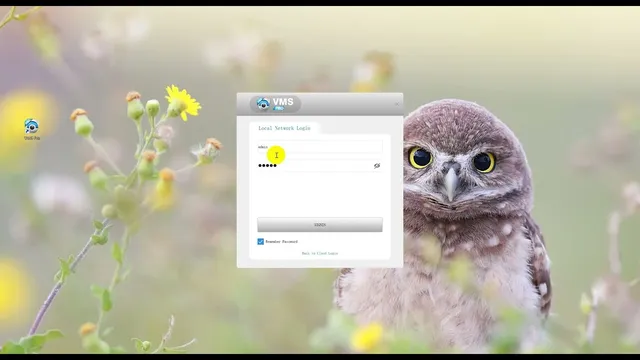
In this video, we will show you two easy ways to add ICC cameras to VMS Pro on a ways to add ICC cameras to VMS Pro on a Windows PC.
The first method uses the ICC mobile app The first method uses the ICC mobile app to sign in to VMS Pro and sync the to sign in to VMS Pro and sync the cameras already connected to your ICC cameras already connected to your ICC account.
Читать материал по расшифровке
Описание автора
Learn how to add iCSee cameras to VMS Pro on a Windows PC using two simple methods.
Method 1: Use the iCSee mobile app to scan the VMS Pro login QR code and sync the cameras already connected to your iCSee account.
Method 2: Use Local Network Login to automatically find and add compatible cameras connected to the same network as your computer.
In this tutorial, you will learn how to:
• Sign in to VMS Pro with the iCSee mobile app
• Confirm the QR code login on your phone
• Sync existing iCSee cameras to VMS Pro
• Use Local Network Login without the mobile app
• Automatically find cameras on the same local network
• Check whether a device is Online or Offline
• Open the camera’s live view
• Select a screen layout
• Use PTZ controls for compatible cameras
For Local Network Login, make sure the computer and cameras are powered on and connected to the same accessible local network.
VMS Pro compatibility may vary depending on the camera model, firmware and supplier configuration.
VMS Pro download and installation guide:
[INSERT BLOG OR DOWNLOAD PAGE URL]
More VMS Pro tutorials covering recording, playback, video downloads and troubleshooting will be added soon.
#iCSee #VMSPro #SecurityCamera #iCSeeforPC