
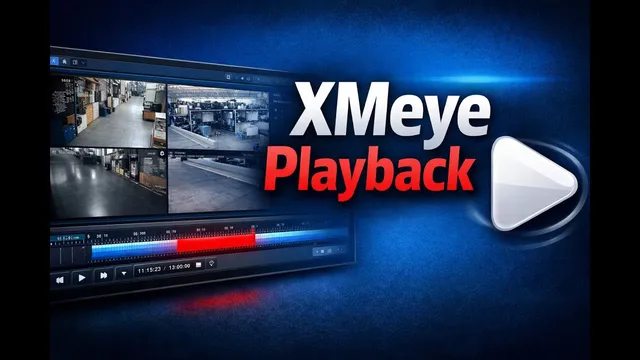
How to Playback Recordings on XMeye VMS (Step-by-Step 2026)
Описание SEC.RU
По нашему материалу и сохранённой расшифровке.
Узнайте, как использовать функцию воспроизведения в XMeye VMS для поиска, просмотра и экспорта записанных видео на ПК. Пошаговая инструкция для начинающих.
We're going to show you exactly how to play back and show you exactly how to play back and find your recorded footage.
In our last video, we showed you how to access your XME devices on a computer access your XME devices on a computer using the VMS software.
Читать материал по расшифровке
Описание автора
⚠️ Your security camera might be exposed online without you knowing.
Check it now:
👉 https://youtu.be/sXe3rgLjE48
In this tutorial, you’ll learn how to use the Playback feature in XMeye VMS software to find, watch, and export recorded footage on your PC.
*We’ll show you step by step how to:*
• Access the Playback menu in XMeye VMS
• Select cameras and time ranges
• Search and watch recorded videos
• Open video files saved on your computer
• Download and export recordings easily
👉 *IMPORTANT:*
If you haven’t watched our first tutorial yet, where we show how to access XMeye devices on a computer using VMS, make sure to check it out first:
https://youtu.be/KK2xICPZ6LY
📂 XMeye Tutorials Library
Looking for more XMeye videos?
Access our complete playlist with all XMeye tutorials posted so far.
https://www.youtube.com/playlist?list=PLNEqLDbcrsuTo4_p33kcEaldw9sf3ifSV
At the end of this video, you’ll also see a button on the screen that takes you directly to the first tutorial.
This guide is perfect for beginners who want to review security camera footage, backup recordings, or manage XMeye DVR and NVR videos on PC.
👍 If this video helps you, don’t forget to like, subscribe, and check the rest of our XMeye tutorials.