
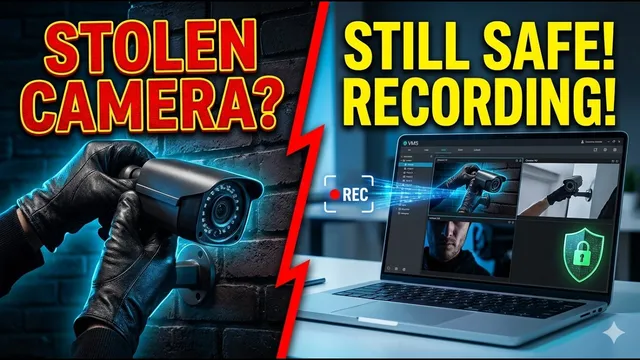
They Can Steal Your Camera, But NOT Your Footage! (ICSee PC Backup Guide)
Описание SEC.RU
По нашему материалу и сохранённой расшифровке.
Узнайте, как превратить компьютер в резервную систему записи для камер ICSee с помощью бесплатного ПО VMS. Пошаговая инструкция: установка, настройка записи, просмотр и автозапуск.
This creates an automatic remote backup, ensuring your footage is remote backup, ensuring your footage is safe even if the camera itself is gone.
And as long as your PC stays turned on, your camera footage PC stays turned on, your camera footage will be safely recorded.
Читать материал по расшифровке
Описание автора
What happens if someone steals your security camera or destroys the memory card? You lose all your evidence! In this step-by-step tutorial, you will learn how to turn your computer into a completely free, automatic backup recording system for your ICSee cameras using the free VMS software.
By setting this up, your video history remains safe on your computer's hard drive even if the physical camera is stolen or damaged. We will cover downloading the software, logging into your cloud account, configuring continuous 24/7 or smart alarm recording, setting storage limits, and making sure the system auto-starts with Windows.
✅ *What you will learn in this video:*
* How to prevent losing footage if your camera is stolen
* Step-by-step installation of the free VMS software
* Connecting ICSee and XMeye cameras to your computer
* Setting up hard drive allocation and automatic overwrite functions
* Configuring continuous 24-hour recording vs. motion detection alarms
* Accessing raw video files and playing back footage on VLC
* Running the recording system automatically on Windows startup
📥 Need the correct version of the VMS software? Contact our technical support team for free assistance!
👉 Contact Support on WhatsApp: https://wa.me/5524981690034
🔔 Subscribe to the channel for more tech tips, security guides, and professional support:
👉 Subscribe here: https://www.youtube.com/@UedersonSecurityLab?sub_confirmation=1
⏳ *Chapters*
0:00 How to protect your security camera footage from theft
0:27 How to download and install VMS software for free
1:21 Logging into VMS with your ICSee or XMeye account
1:34 Checking camera connection status in Device Manager
1:48 Setting up the Record Plan and dragging cameras
2:15 Configuring hard drive storage limits and overwrite options
3:28 Setting up continuous 24-hour recording vs. smart alarms
4:41 How to playback recorded videos inside VMS software
5:21 Accessing raw h264 video files via Windows File Explorer
5:41 How to run VMS in the background automatically on Windows startup
6:26 Subscribe for more technical support and tech tips
#ICSee #VMSSoftware #SecurityCameraBackup #IPCameraToPC #CCTV #HomeSecurity #TechTutorial #UedersonSecurityLab